Data Processing
1. Basic pandas Data Types
1 The Series Type
Pandas is a very commonly used library in data processing, a must-use library for data analysts and AI engineers. Whether you can use this library proficiently directly determines whether you can process data into the shape you want. Pandas is built on NumPy and makes NumPy-centric applications much simpler. It focuses on data processing, and it helps people in roles such as data analysis, data mining and algorithm engineering solve preprocessing problems easily and quickly, for example data type conversion, handling missing values, descriptive statistical analysis, data aggregation and other features.
It contains not only all kinds of data processing methods, but also methods for reading data from many data sources, such as Excel and CSV, which we will cover later. Let’s start by learning Pandas’s data types.
Pandas has two data types in total: Series and DataFrame. Let’s first learn the Series type.
The Series type is similar to a one-dimensional array object. It consists of a set of data and a set of data indexes associated with it. Code example:
import pandas as pd

# Instantiate a Series object; the argument is an array.
obj = pd.Series([1, 2, 3, 4, 5, 6])
print(obj)
print(obj.index)  # Get the index
print(obj.values)  # Get the values
The printed result shows two columns of content:
0    1
1    2
2    3
3    4
4    5
5    6
dtype: int64
RangeIndex(start=0, stop=6, step=1)
[1 2 3 4 5 6]
The first column represents the index values and the second column represents the values of the object itself; line 7 is a description of the values in this object.
We can define the index of a Series ourselves, like this:
# The first argument of Series specifies the values of the object, and the index argument is the index we redefine.
obj = pd.Series(['a', 'b', 'c', 'd', 'e'], index=[1, 2, 3, 4, 5])
print(obj)
print(obj[1])  # Access the value of the object at index 1
A Series can also be declared using a dictionary:
data = {'a': 100000, 'b': 20000, 'c': 30000}
obj = pd.Series(data)
print(obj)  # The keys of the dictionary are the index values of the Series object, and the values of the dictionary are the values of the Series object
print(obj['a'])  # Access the value of the object at index a
2 The DataFrame Type
A DataFrame is a tabular data structure. It contains an ordered set of columns, and each column can hold a different type of value: numbers, strings and booleans are all fine. A DataFrame has both a row index and a column index. Note that it has a column index, which is something we haven’t encountered before.
You can think of the DataFrame type as if we had put the data into an Excel spreadsheet, with specific rows and columns. Code example:
# Suppose we re-rank the 1996, 2003 and 2009 drafts
data = {
    '96年': ['科比', '艾弗森', '卡特'],
    '03年': ['詹姆斯', '韦德', '安东尼'],
    '09年': ['库里', '哈登', '格里芬'],
}
frame_data = pd.DataFrame(data)
print(frame_data)
Pay attention to what is returned:
   96年  03年  09年
0   科比  詹姆斯   库里
1  艾弗森   韦德   哈登
2   卡特  安东尼  格里芬
(The column labels mean 1996, 2003 and 2009, and the names are Kobe, Iverson, Carter; James, Wade, Anthony; Curry, Harden, Griffin.)
We call 0, 1, 2 the row index, and 96年, 03年 and 09年 the column index. We can directly access the values of a column with the following code:
print(frame_data['96年']) # Directly access the values of this columnThere is a way to generate an index automatically from dates. First, let’s generate a range of dates. The code is as follows:
import pandas as pd
import numpy as np

# date_range is similar to the range we learned before
# periods means how many days to add going forward from the given date
dates = pd.date_range('20190701', periods=6)
print(dates)
If we look at the value of dates on its own at this point, the result returned is:
DatetimeIndex(['2019-07-01', '2019-07-02', '2019-07-03', '2019-07-04',
               '2019-07-05', '2019-07-06'],
              dtype='datetime64[ns]', freq='D')
Next we can use dates as the index and declare a DataFrame object. The code is as follows:
df = pd.DataFrame(np.random.rand(6, 4), index=dates, columns=list('ABCD'))
print(df)
In this line of code, the first argument uses NumPy to generate random numbers in 6 rows and 4 columns, index specifies its row index, and the columns argument specifies the column index. If we print the df variable now, the result is as shown below:
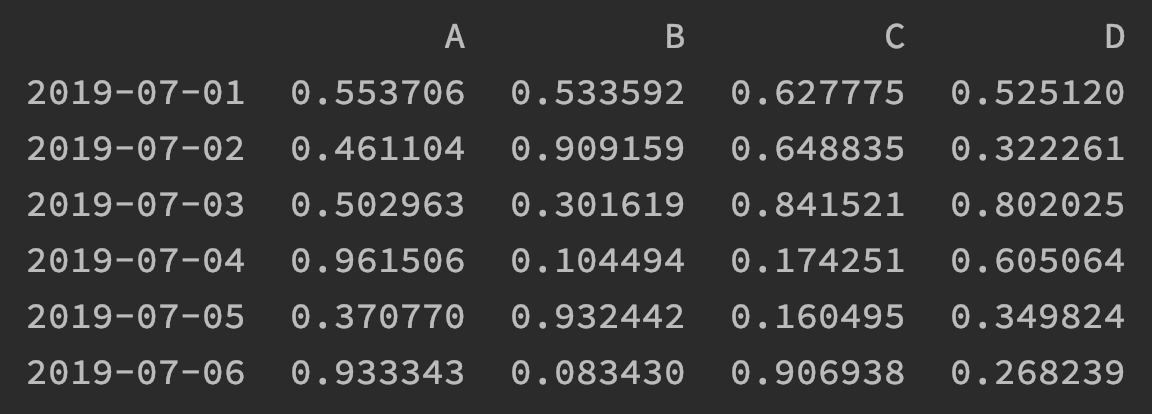
“Now we can focus on practicing how to access the data in a DataFrame. We just learned how to access the data of a column. Now let’s think: what if I want to access data by row? If we want to access data by both row and column at the same time, we can use the loc method to do this. The code is as follows:
# Filter only by rows
print(df['20201012':'20201015'])

# Access a single value
print(df.loc["20201012", ['A']])

# Filter multiple rows and multiple columns
print(df.loc["20201012":'20201015', ['A', 'B']])
2. Loading External Data
1 csv
There are mainly four kinds of external data: txt, Excel, csv and databases. Text files can only be read using the most basic Python approach; let’s look at the others one by one.
If you don’t work in the IT industry, you may not use CSV files very often. We can think of it as a text file, but what makes it special is mainly the delimiter between pieces of data. Besides that, the other distinguishing feature is its file extension, which ends in .csv. The file looks like this:
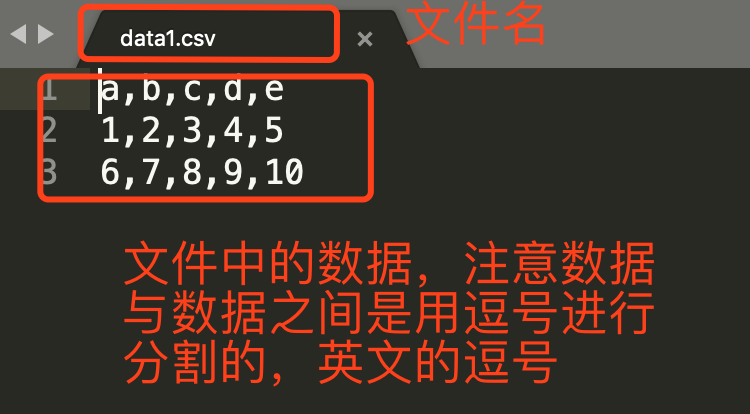
Although we could also use Python’s file reading methods for CSV files, since they have a format, we should read them according to that format, which makes subsequent data processing easier. Turning the data we read into a certain data type makes it convenient to work with. The code is as follows:
import pandas as pd
# data1.csv is the file path; you can write either an absolute path or a relative path here
data = pd.read_csv('data1.csv', header=None)
print(data)
print(type(data))
The first argument is the file path, which we already understand. The header argument explicitly states that the file has no header row, so please create one for me automatically. If the header argument isn’t specified, the first row of data is treated as the header by default, that is, as the column index. The result of running the code is as follows:
   0  1  2  3   4
0  a  b  c  d   e
1  1  2  3  4   5
2  6  7  8  9  10
If you need to use a certain column as the row index, the code is as follows:
data = pd.read_csv('data1.csv', index_col='b')
print(data)
print(type(data))
What you should note in the results above is the type of the return value: they are all DataFrames. In other words, the DataFrame methods we will use later are all suitable for processing the data read from these files.
2 Excel
Reading Excel is very similar to reading csv. The sheet_name argument here specifies which sheet’s data to read; if it isn’t specified, the first sheet is used by default. The code is as follows:
data = pd.read_excel("data.xls", sheet_name="申报表")
print(data)
print(type(data))
Note that to read Excel files you need to install the xlrd module.
3 MySQL
Reading from MySQL works the same way; the prerequisite is connecting to the database first. The code is as follows:
import pandas as pd
import pymysql

conn = pymysql.connect(host='192.168.1.1',
                       port=3306,
                       user='admin',
                       passwd='123456',
                       db='school',
                       use_unicode=True,
                       charset="utf8")

sql = 'select * from class'

r = pd.read_sql(sql, con=conn)
print(r)
print(type(r))
3. Handling Dates
Date-formatted data is a format we often encounter when processing data. Let’s see how we should handle date data in Excel.
The existing Excel data is shown in the figure below:
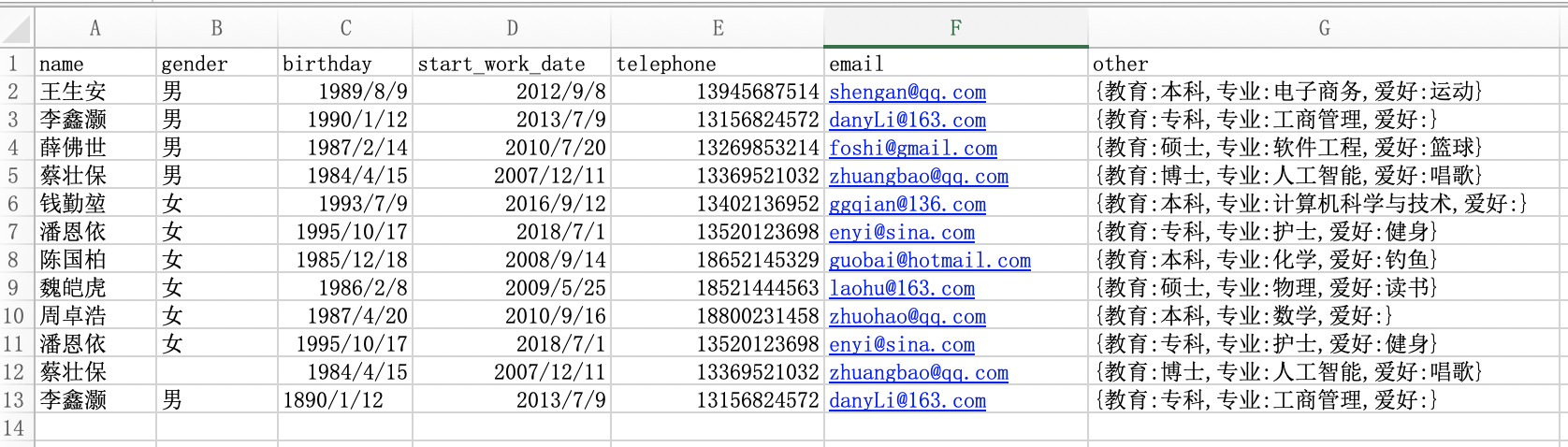
Now let’s think about a few questions:
- How to change the data type of the phone number field
- How to update the age and years-of-service fields based on the date-of-birth and start-of-work-date fields
- How to hide the middle four digits of the phone number
- How to extract the email domain field from the email information
- How to extract each person’s major from the other field
The solution process and code are as follows:
import pandas as pd
import datetime

data = pd.read_excel('data2.xls')
print(data)
print(data.dtypes)  # Check the data type of each element

# 1 Change the phone number field to object (string) type
data.telephone = data.telephone.astype('str')
print(data.telephone.dtype)

# 2 Calculate age and years of service
now_year = datetime.datetime.now().year  # Get the current year; pd.datetime.today().year can also be used
print(now_year)
bir_year = data.birthday.dt.year
print(bir_year)  # Get the year of the birthday field
data['age'] = now_year - bir_year  # Add an age field
data['work_age'] = now_year - data.start_work_date.dt.year
print(data)

# 3 Hide the middle four digits of the phone number
data.telephone = data.telephone.apply(func=lambda x: x.replace(x[3:7], '****'))
print(data.telephone)

# 4 Extract the email domain
data['email_domain'] = data.email.apply(func=lambda x: x.split('@')[1])
print(data.email_domain)

# 5 Extract the major (we use a regular expression here; there are other ways too)
data['profession'] = data.other.str.findall('专业:(.*?),')
print(data.profession)
Besides adding fields, I can also delete fields. The code is as follows:
# axis=1 specifies axis 1, and inplace=True actually performs the deletion
data.drop(['birthday', 'start_work_date'], axis=1, inplace=True)
print(data)
A bit more needs to be said about date handling methods. Above we already got the year; we can also get other units.
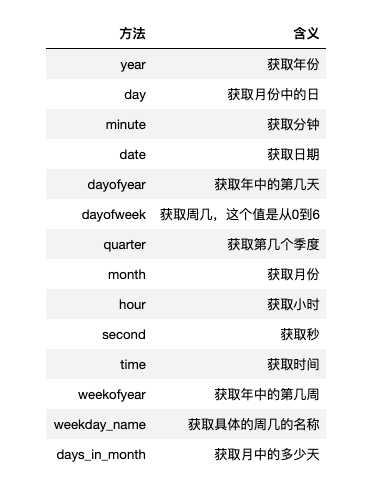
4. Data Cleaning Methods
1 Handling Duplicate Data
First, let’s make a simple modification to the original dataset, as shown in the figure below:
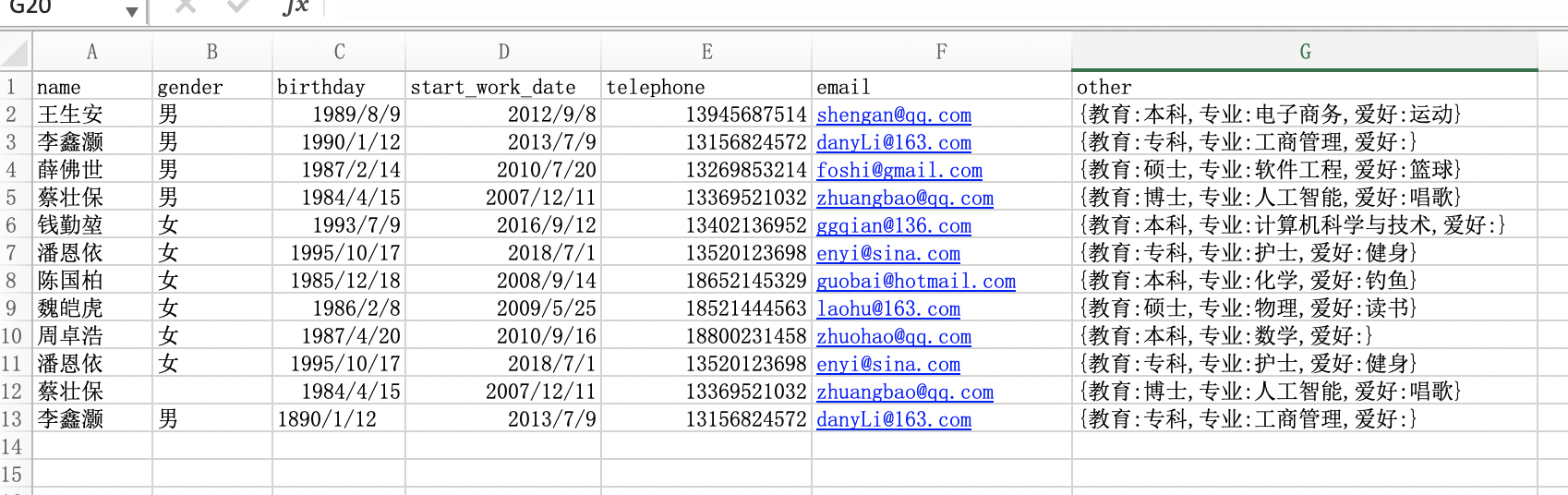
We don’t need to iterate and compare; pandas has a dedicated method for getting duplicate data. The code is as follows:
import pandas as pd

data = pd.read_excel('data.xlsx')

# Use duplicated() to get duplicate data
repetition = data.duplicated()
print(repetition)
Here is the result returned:
0     False
1     False
2     False
3     False
4     False
5     False
6     False
7     False
8     False
9      True
10    False
11    False
dtype: bool
Note that the rows in this result don’t correspond to the rows in Excel. From the result we can see that row 9 is a duplicate; duplicate data here means data where every field is duplicated. If a row isn’t a duplicate, the result is False; if it is, the result is True. For duplicate data, the usual way to handle it is deletion, which can be done with the drop_duplicates() method.
data.drop_duplicates(inplace=True)  # This argument is required to actually delete
print(data)
After deletion you’ll find the index hasn’t changed. If you need to reset the index, use the reset_index method.
# To reset the index, use reset_index
data = data.reset_index(drop=True)
print(data)
2 Handling Missing Values
From the original data we can see that for the row with index 10, the value in the gender column is NaN, which means this value is empty. We can get the empty values with the isnull() method.
nan = data.isnull()
print(nan)
There are many ways to handle missing data; the common ones are deletion and filling. For deletion, we can use the df.dropna() method, which removes the data. What I want to focus on here is filling data, and there are several ways to fill:
# Forward fill: replace a missing value with the value before it
data = data.fillna(method='ffill')
print(data)

# Backward fill: replace a missing value with the value after it
data = data.fillna(method='bfill')
print(data)

# Replace with a specified value; if missing, default to male; you can also write some expressions here
data = data.fillna(value='男')
print(data)
3 Handling Outliers
Outliers are usually identified by observation in combination with the business context. For example, the row with index 11 has a date of birth of 1890/01/12, which is clearly an outlier. Of course, Pandas also provides some methods to help us check whether there are outliers. Usually we look at the info attribute, use the describe() method, or get the standard deviation std, among other ways, to see whether there are anomalies in the data. When processing data in a company, outliers only make sense when combined with your business scenario. Like the date of birth above: today it’s definitely an outlier, but a hundred years ago it would have been a normal value.
4 Pivot Tables
The next topic is pivot tables. I’m sure you’ve used Excel to summarize some data. Pandas provides the same kind of feature: the function pivot_table(), which has pivot table functionality. Let’s first look at some of this function’s parameters.
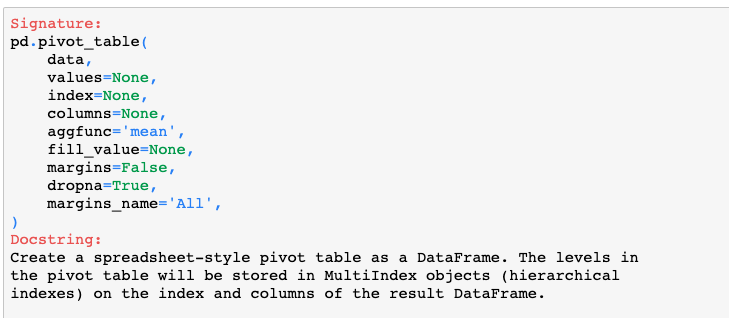
- The data parameter refers to your dataset.
- The values parameter refers to the data values to observe and analyze, i.e. the value field in Excel.
- The index parameter refers to the data values for the row index, i.e. the row field in Excel.
- The columns parameter refers to the data values for the column index, i.e. the column field in Excel.
- The aggfunc parameter refers to the statistical function for the data. The default is the mean, and it can also be set to other statistical functions in the NumPy module.
- The fill_value parameter is a scalar used to fill missing values.
- The margins parameter is a boolean indicating whether to show row or column totals; the default is False.
- The dropna parameter is a boolean indicating whether to drop fields whose entire column is missing; the default is True.
- The margins_name parameter specifies the name of the row or column totals; the default is All.
Now let’s try computing the sum of ages for men and women separately in the existing table. First, we calculate everyone’s age.
data['age'] = pd.datetime.today().year - data.birthday.dt.year
print(data)
Then we use the pivot table feature to calculate the total age of men and of women.
import numpy as np

age_sum = pd.pivot_table(data=data, index='gender', values='age', aggfunc=np.sum)
print(age_sum)
Exercise:
Here is a small exercise for consolidation. The exercise has been uploaded as a file that you can download and view directly. If you run into something you’re not sure about, search for it first and try to see if you can solve it on your own.