Chapter 4: Character Encoding
This article is part of the General Python Programming tutorial series, which is now fully complete. Its goal is to take you from zero to mastery of the Python programming language. This tutorial does not skim over Python in generalities; instead it explains things in a refined, in-depth way, across 5 stages and 25 chapters. So you need to study patiently to truly gain something. Although it doesn’t involve using any frameworks, it gives a holistic explanation of operating systems and network communication, and even rewrites some open-source modules and servers. When you finish, you won’t just have mastered the Python programming language; you’ll also have the ability to learn other programming languages quickly, read any Python source code without difficulty, and have a comprehensive understanding of computers and networks. For complete beginners, it is an excellent textbook for getting into the field of computing and mastering a programming language. For those who already have some Python foundation, I believe this tutorial will take your skills to the next level.
1 Background Knowledge for Understanding Character Encoding
1. About Character Encoding
The topic of character encoding actually involves only a single line of code, but it is extremely important. According to incomplete statistics, 30% of losses in software today are caused by garbled-text (mojibake) problems. This issue is the one most easily overlooked, because in practice it’s just a matter of one line of code, yet there’s a lot of knowledge behind it. Most people prefer to grasp the result directly without thinking about the knowledge inside, which leaves them at a loss as soon as they run into a garbled-text problem caused by character encoding. You may have read some related introductions before; we won’t comment on whether they’re right or wrong for now. In this article we’ll give a comprehensive introduction to character encoding. Character encoding is characterized by a great deal of theory and very few conclusions, but if you don’t know the theory, you may never understand the conclusions, and you’ll be at a loss whenever you hit character encoding problems in the future. At present almost nobody online can explain it clearly, because the history of character encoding spans the entire history of computing. We won’t simply hand you ready-made or speculative conclusions; instead we’ll use objectively displayed print results to demonstrate that what I’m telling you is correct.
2. How a Computer Runs Application Software
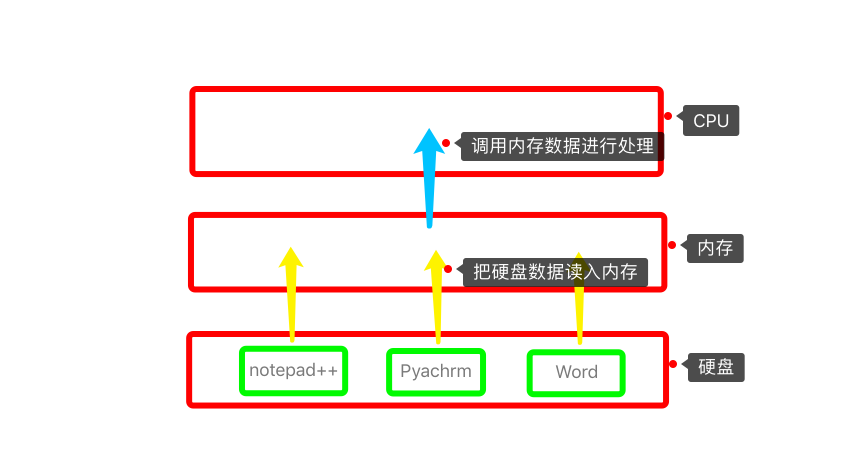
Before formally introducing character encoding, we first need to understand which core components are involved in running a computer:
CPU: runs programs
Memory: stores data temporarily; for a piece of software to run, it must first be loaded into memory
Hard disk: for software data to be stored permanently, it must be saved to the hard disk
As shown in the figure below, the startup process of an application is:
- The application is stored on the hard disk
- The application program is read from the hard disk into memory
- The CPU fetches the data related to the application from memory and processes it
3. How Saving a File Works
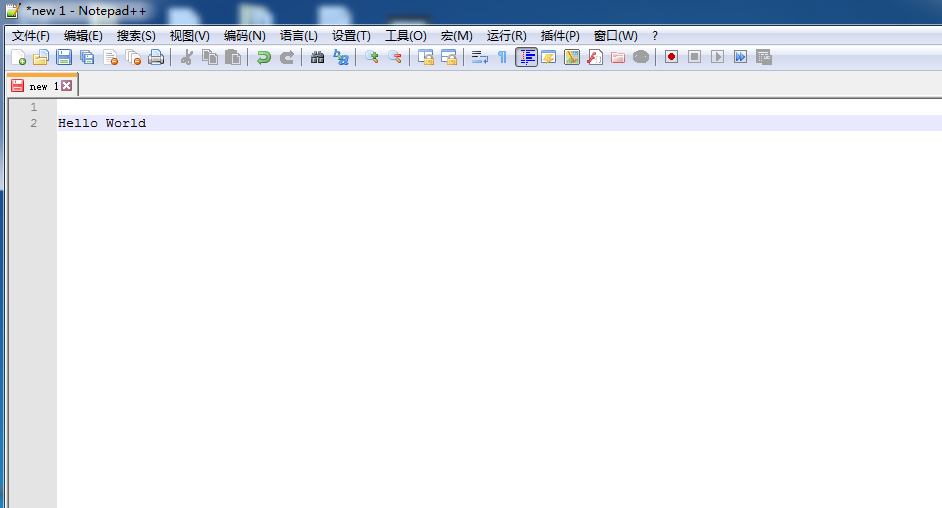
Next, let’s look at the process of a text editor saving a file (you can download and install the notepad++ editor):
- As shown in the figure below, when I start the notepad++ program, the program is read into memory
- After I type “Hello World” in notepad++, the content is temporarily stored in memory
- What you see on the screen now is the result notepad++ returns as you type
The characteristic of data in memory is that as soon as the power is cut, the data is lost. So if we want to save data permanently, we need to perform an operation in notepad to save the data permanently to the hard disk (notepad gives you an extra feature that saves automatically to the hard disk; this is to improve the user experience, and early programs didn’t have this feature).
4. How Python Programs Are Executed
Next, let’s look at how the Python interpreter executes a Python program. It also has three stages (taking the Python3 interpreter and a test.py file as an example):
- First start the Python interpreter (read the Python3 interpreter application into memory)
- Read the test.py file into memory
- The Python3 interpreter recognizes Python syntax and interprets and executes the test.py program
Note: if the Python code we write is not interpreted and executed by an interpreter, it’s no different from writing an ordinary file. In other words, you can write Python code in Pycharm, or you can write it in WPS. When writing a Python program there is no notion of syntax (syntax checking is an extra feature Pycharm gives you, but in essence it is also a text editor); the result of writing it is no different from writing an ordinary file. Syntax is checked only in the third stage, when the Python program is executed.
2 Introduction to Character Encoding
1. Character Encoding Makes Its First Appearance
Computers work on electricity. A high voltage level is represented by the digit 1 and a low voltage level by the digit 0, and computers can only recognize things like 010101. This is binary, and computers work on the basis of binary. When we use computers day to day, we don’t control them with binary; we use human characters (Chinese people use Chinese, Americans use English). But computers can’t understand these human characters. For a computer to understand them, a process must happen first:
Human characters ====> translation ====> binary numbers
When we write “你好” in notepad, the content is written into memory. For the computer to recognize it, it must first go through a translation process. This translation certainly can’t be arbitrary, because when retrieving the data, it must still be taken out according to a one-to-one correspondence between binary numbers and human characters. So a standard must be followed, and this standard is the character encoding table.
When we write “Hello World” in notepad, this table has already been stored inside the computer in advance. Every letter (both uppercase and lowercase), as well as spaces, carriage returns, punctuation and so on, corresponds to a number, and these numbers are then converted to binary. So each character corresponds to a group of binary digits, and the writing process is complete. When printing, the process is reversed: a group of binary digits corresponds to a character. So now we know there should be such a character encoding table in memory. In the early days the hard disk also stored binary, so there was no need for a character encoding table on the hard disk.
2. The History of Character Encoding
Computers originated in the United States, and Americans speak English. When Americans designed them, they never considered that one day Chinese people could also afford computers. So at the time, Americans only needed to make sure computers could recognize English symbols. The character encoding table back then was just the correspondence between English characters and numbers; all of these added up to just over 120, which was enough, so there needed to be just over 120 different numbers to represent these characters. Computer numbers are binary, so how many binary digits are needed to represent over 120 numbers with things like 010101?
One binary digit: can only represent the two numbers 0 or 1; excluding 0, it can represent only 1 number
Two binary digits: 00, 01, 10, 11 can represent 3 numbers
Three binary digits: 000, 001, 010, 011, 100, 101, 110, 111 can represent 7 numbers
Four binary digits: can represent 2**4-1 = 15 numbers
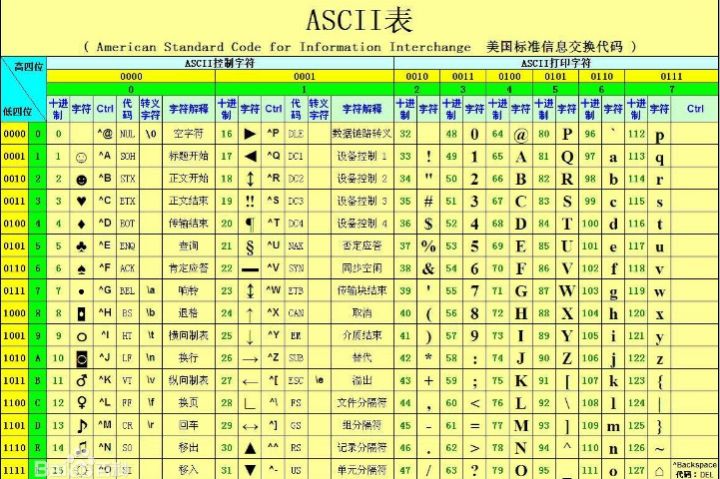
The original design used eight binary digits: the smallest is 0000 0000 and the largest is 1111 1111, which can represent 2 8 - 1 = 255 numbers (not counting 0). But at the very beginning only the last seven bits were used, which can represent the numbers 1 to 127, and that was enough; one bit was left over to leave room for future expansion. One binary digit is called a bit, and 8 bits are called a byte: 8bit = 1bytes. Americans used 8 bits to represent one English character, so an English character occupies one byte. This character encoding table is the ASCII table, which is also the earliest character encoding table, as shown below.
Later, Chinese people also started using computers. ASCII only had the mappings for English characters, and 8 bits can represent mappings for at most 200-something characters; if someone said they knew 200-something Chinese characters, they probably hadn’t even finished primary school. In this situation, the Chinese created their own character encoding table, called GBK (gb2312). To represent more numbers, the GBK table uses 16 bits to represent one Chinese character, so the number of Chinese characters it can represent is 2 16 - 1 = 65535, which basically covers all the Chinese characters we commonly use. So GBK uses two bytes to represent a Chinese character, but it still uses one byte to represent an English character (to stay consistent with ASCII).
It’s not just Chinese people who can use computers; Japanese and Korean people can too. The Japanese defined their own Shift_JIS encoding, and the Koreans defined their own Euc-kr encoding (in addition, the Koreans said they invented the computer and demanded that the world uniformly use the Korean encoding, but the people of the world ignored them).
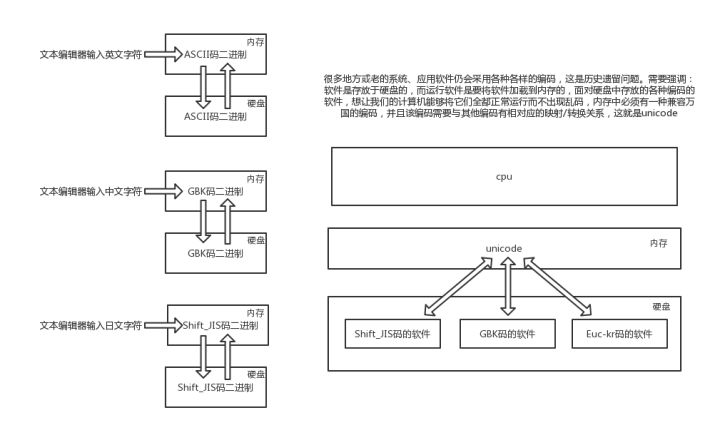
At this stage, if each country’s material were only read by its own people, there would of course be no problem. But clearly we do have such a need, and that creates a problem: your hard disk may contain software encoded by Japanese or Koreans, but the character encoding table in memory only has GBK, so garbled text appears. You’re not Qin Shi Huang, so naturally you can’t accomplish something as great as he did; thus a character encoding compatible with all the world’s languages had to be found (actually, sixty-thousand-odd code points are enough — although languages differ, the symbols they use are very similar). This character encoding is Unicode, which uses 16 bits, i.e. two bytes, to represent one character. This means that data from any country, once in memory, is in Unicode, so there’s no garbled text in memory. Beyond this, there was another very important issue: files saved on hard disks in each country’s encoding couldn’t be thrown away — that’s a legacy problem — so Unicode also had to have a very important function: converting files in each country’s encoding into Unicode, as shown below. With Unicode, on the one hand it is compatible with all the world’s languages, and on the other, old software can also run on machines in different countries.
At this point, Unicode character encoding had solved most garbled-text problems, but there was still room for optimization. Memory uses Unicode, and the hard disk holds software in each country’s encoding. Programs written in the future would certainly tend to use Unicode throughout, but if a document is mostly English, then for the same content, in the original ASCII an English character occupies one byte, while in Unicode an English character occupies two bytes. That increases hard disk usage and lengthens IO operation time (for now, think of IO operations as read/write operations; IO operations are covered separately in the last chapter of Stage 5). In the spirit of economy, the UTF-8(可变长,全称Unicode Transformation Format) encoding appeared, which converts Unicode into a “variable-length encoding”. UTF-8 encodes a Unicode character into 1-6 bytes depending on the size of its number: common English letters are encoded as 1 byte, Chinese characters are usually 3 bytes, and only very rare characters are encoded as 4-6 bytes. If the text you want to transmit contains a lot of English characters, UTF-8 saves space. So today the character encoding on hard disks is generally “UTF-8”, and the one used in memory is generally Unicode. In the future memory and hard disk storage will certainly both tend to use UTF-8, but at the current stage we’re forced into this: Unicode is still responsible for converting the encodings left over from history.
3 How Garbled Text Arises and How to Fix It
1. The Cause of Garbled Text
Next comes our experiment. The encoding in memory is always Unicode. If we ignore the hard disk, no matter what encoding you write in memory, there will be no garbled text. But because the hard disk exists, when saving from memory to the hard disk you have to specify a character encoding, say GBK; at that point Unicode is converted into GBK. When you read this file on the hard disk back into memory, you also have to tell the computer to read it with GBK, and only then will it correspondingly decode the data from GBK back into Unicode and write it into memory. If at this point you tell the computer to decode the data using the ASCII standard, it can’t recover the originally saved content; the computer gets confused, and what it shows you is the result of its confusion.
2. The Solution That Guarantees No Garbled Text
There’s really only one conclusion for guaranteeing no garbled text: read a file with the same encoding it was saved with. Note: what we can control is only the encoding used when the file is saved from memory to the hard disk.
3. Creating Garbled Text Deliberately
Next, we’ll demonstrate deliberately creating garbled text in notepad++. First change the program’s file-saving encoding to a Japanese encoding (see https://jingyan.baidu.com/article/154b46314b68da28ca8f412b.html), then type in the Chinese “你瞅啥” (“What are you looking at?”) followed by the Japanese “あなたを見て” (the Japanese for “Looking at you, so what?”), and then save. Note: during saving, the computer actually can no longer recognize the Chinese “你瞅啥”, but it can’t throw an error, so it has to force the save. So the saving process doesn’t seem to have any problem, and what you see now is still in memory.
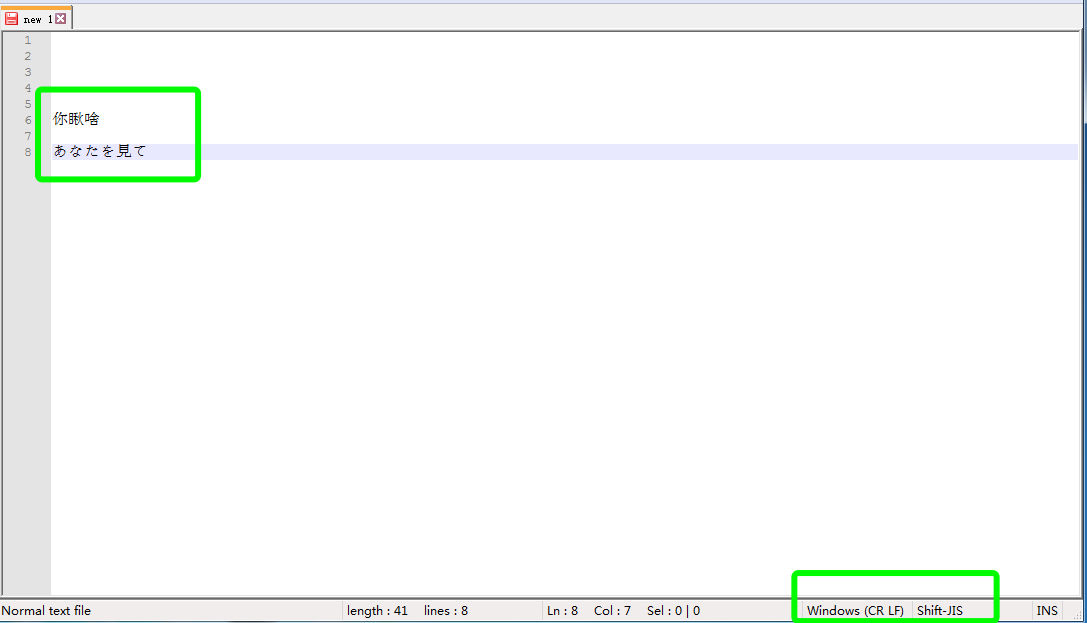
After saving, we close it and read it again. First let’s try ASCII and see what result we get.
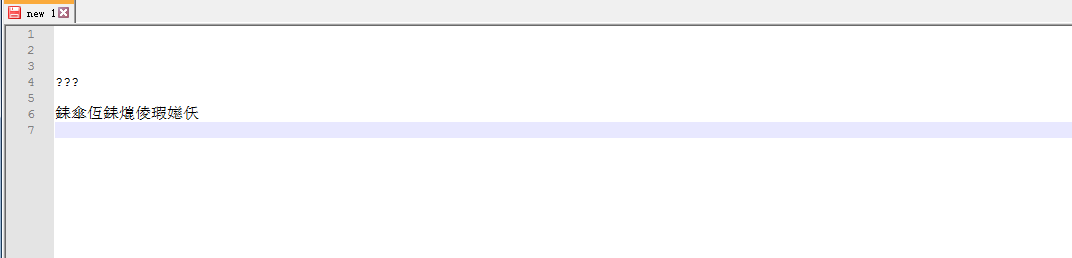
It’s all garbled, so let’s change it to the Japanese encoding and try again.

The Japanese “Looking at you, so what?” has been read out, but the Chinese characters we saved can’t be read. At this point, no matter which encoding we change to, the Chinese characters can’t be read, because at save time the computer already couldn’t recognize them and didn’t complete a valid save of the data. So from now on, when writing programs and files, always write in UTF-8, and garbled text won’t happen.
4 Character Encoding Issues in Python
1. Differences in Character Encoding When the Interpreter Reads a File
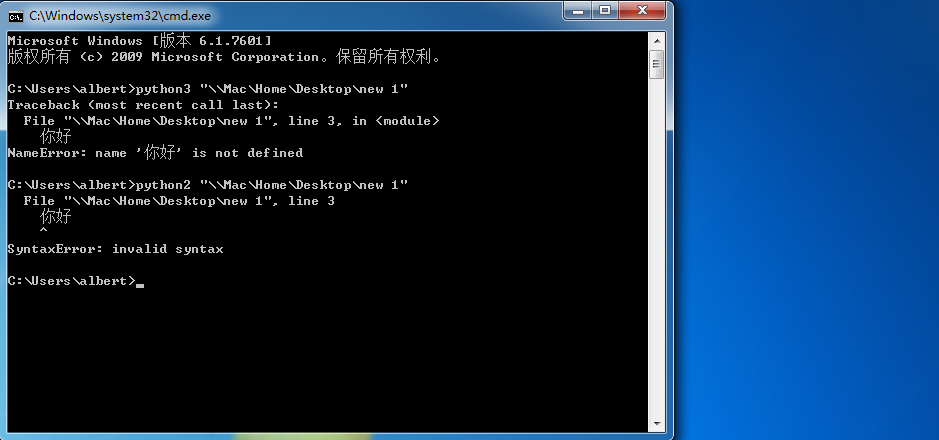
Now we write “你好” in a file using GBK, then interpret and execute it with the Python interpreter (not Pycharm). You’ll find that Python2 and Python3 show the following error messages respectively, as shown below. This means that if you don’t specify a character encoding:
The Python3 interpreter reads with UTF-8 by default
The Python2 interpreter reads with ASCII by default
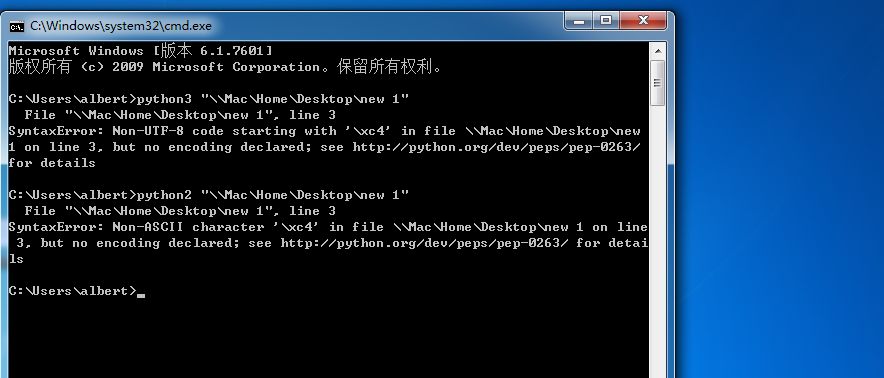
To solve this problem, we need to specify the character encoding at the top of the Python file, as shown below.
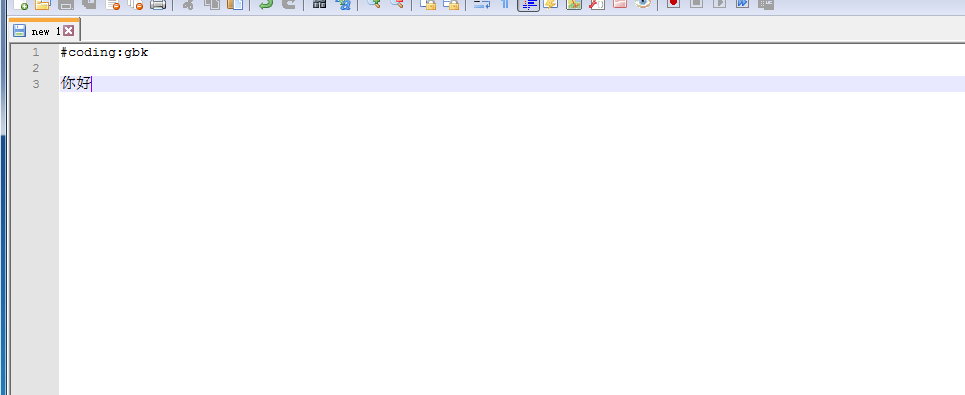
When we call the interpreter to execute it again, there’s no more character encoding error.
The purpose of the file header is to tell the Python interpreter to read the file contents with the specified character encoding.
In Pycharm, once I specify the character encoding for reading the file, it automatically changes the character encoding used to save the file to the hard disk, as shown below.
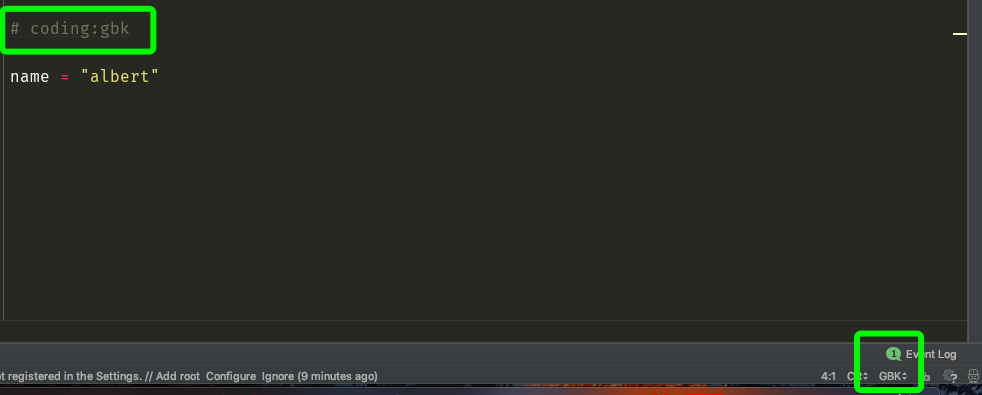
Many people know that when writing code, you put a file header line at the very top of the file that specifies the character encoding:
# coding:utf-8But they may not know why. In Pycharm, as long as you write this, no character encoding problems will occur. But if you switch to another IDE, this line represents the character encoding used for reading the file. If that IDE’s default encoding for saving to the hard disk is “GBK”, and it doesn’t change along with your file header, then it saves in GBK, while reading specifies UTF-8, so the computer can’t read it. If someone else has to solve this problem without knowing its cause, they may also be completely baffled. Fortunately, most text editors use UTF-8 as the default character encoding, and people generally specify UTF-8 as the reading standard in the file header. So for most people who don’t understand character encoding, the chance of running into errors is relatively low.
2. Differences in Character Encoding When the Interpreter Executes a File
In Python there is one data type that involves the concept of characters, and that data type is the string. If we don’t specify a character encoding when writing a program, it is saved in UTF-8 by default, and the Python3 interpreter also reads with UTF-8 by default, so it runs in Python3 without any problem, but not in Python2. So to make sure the first two stages of executing a Python program go smoothly, we always add a file header specifying UTF-8. But in the third stage, syntax recognition begins. We write the following code in Pycharm. When executing, the computer first reads the code into memory in Unicode, then the Python interpreter detects that the code wants to store a string variable “上”, so the interpreter asks the computer to allocate memory space and stores the character “上” in the computer’s memory. Naturally it is stored in binary, but which character encoding should it be stored with?
# coding:gbk

x = '上'
This involves Python’s data types. The interpreter was written by Guido, so naturally he has the final say.
Strings in Python2 come in two types: 1 str, 2 unicode
In Python2, if you specify a character encoding, the string is stored according to the encoding you specified. As in the code above, we specified GBK, so in memory a Chinese character is stored in two bytes. Let’s verify this. If we print x directly, in theory x corresponds to a string of binary digits, and when printing, the Python2 interpreter performs a conversion for you so that you can see the printed result more intuitively, but garbled text will appear (we’ll discuss this garbled-text problem at the end). We can print it in the form of the following code to see the result before conversion (Guido hadn’t gotten around to doing the conversion in Python2 before he wrote Python3).
# coding:gbk

# The interpreter has been switched to Python2

x = "上"
# print(x)  # In Python2 it also prints with parentheses
print([x, ])
"""
输出:
['\xc9\xcf']
"""
Looking at the output, “\x” stands for hexadecimal, and “c9” and “cf” each represent two hexadecimal digits. One hexadecimal digit corresponds to four binary digits, so the printed result ‘\xc9\xcf’ is 16 binary digits, i.e. 16bit=2bytes, which proves that GBK uses two bytes to store a Chinese character. Next, in the same way, let’s verify that UTF-8 uses 3 bytes to store common Chinese characters. The code is as follows.
# coding:utf-8

# The interpreter has been switched to Python2

x = "上"
# print(x)  # In Python2 it also prints with parentheses
print([x, ])
"""
输出:
['\xe4\xb8\x8a']
"""
3. Converting Between Character Encodings
From the explanation above, we already know that unicode can be converted into GBK or UTF-8, and they can also be converted back. The conversion process between them is as follows:
unicode => encode => GBK/UTF-8
GBK/UTF-8 => decode => unicode
So the following code is bound to execute:
# coding:utf-8

# The interpreter has been switched to Python2

x = "上"
# print(x.decode('gbk'))  # Encoded with utf-8, so it can't be decoded with gbk
print(x.decode('utf-8'))  # Encoded with utf-8, decoded with utf-8
print([x.decode('utf-8'), ])  # Print in a list to see the unicode encoding before Guido's conversion
"""
输出:
上
[u'上']  # \u 代表unicode
"""
Let’s compare with the character “上” in the unicode character encoding table. The figure below shows part of the unicode character encoding table. Values on the left starting with 4, such as “4E05”, are the hexadecimal representation in unicode. Clearly, by comparing, we can find that the unicode hexadecimal for the character “上” is “4e0a”.
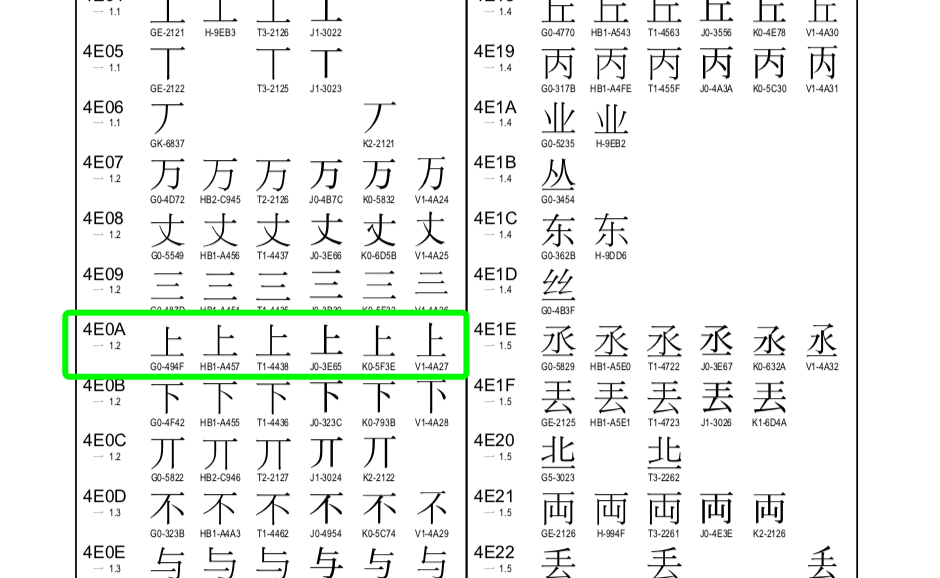
In unicode you can see 6 characters that look like “上”. The first is Simplified Chinese, the second is Hong Kong Traditional Chinese, the third is Taiwan Traditional Chinese, and the fourth is Japanese. These characters all look similar, so in unicode they are all stored uniformly as “4e0a”, but to distinguish characters in each different encoding, an identifier like “494F” is added. This is also how unicode accomplishes conversion to and from the encodings of all countries.
4. The Difference Between Python2’s Two String Types
# coding:gbk

# The interpreter has been switched to Python2

x = "上"
print(type(x))  # str type
print([x, ])  # Stored in gbk encoding
print([x.decode('gbk'), ])  # After decoding it is unicode, the same as the encoding stored below

y = u'上'  # Add "u" in front when defining the string
print(type(y))  # unicode type
print([y, ])  # Stored in unicode encoding
5. How Character Encodings Are Stored and Retrieved
Taking GBK as an example, if we store the character “上”, the stored result should correspond to the GBK code “494F” in the unicode table above. But look at the code below: the printed result doesn’t match. Why is that?
# coding:gbk

# The interpreter has been switched to Python2

x = "上"
print([x, ])  # Stored in gbk encoding
"""
输出
['\xc9\xcf']
"""
GBK can store Chinese or English characters. Suppose we want to store the string “你a好”; it would be stored with 8bit+8bit+8bit+8bit+8bit, 40 bits in total. Storing it this way is no problem, but retrieving it becomes a problem: the computer doesn’t know which bit starts and which bit ends the first character, so with everything joined together it can’t retrieve the values (Han Yu wrote in “On Teachers”: “not knowing where sentences pause” — the same principle; it means not understanding punctuation, so naturally you don’t understand where sentences begin and end, and you can’t read a sentence). When retrieving values, the computer must also have a clear start and end. So in fact, when storing, the computer doesn’t use all 8 bits to represent the character. This is also why GBK ostensibly stores 65535 Chinese characters but actually doesn’t store that many — it can only store 30,000-odd. GBK can represent two kinds of characters, Chinese and English, and in fact its first bit is used to distinguish Chinese from English. So to store the string “你a好”, it should be stored as follows:
(1+7bit)+(1+7bit)+(1+7bit)+(1+7bit)+(1+7bit)
Suppose a first bit of 1 indicates a Chinese character. Then it first reads the first bit of the first byte, which indicates Chinese; after reading the rest of this byte, it needs to read the first bit of the second byte, which happens to also be 1, so after reading the following 7 bits it can accurately read this Chinese character. Likewise, if the first bit of a character is 0, it represents an English character, and it only needs to read the contents of this one byte to accurately read the English character.
Computers are originally just machines; all their intelligence comes from human wisdom.
If you save in GBK but read in UTF-8, since the two encodings use different numbers of bytes per character, the flags in the first bit of each character’s first byte are inconsistent. It may happen that the first character hasn’t been fully read while the following bit flags don’t match the flags of the character just read, so no character can be read accurately, and garbled text results.
Now that we understand the principle of storing and retrieving, let’s look at the process of GBK storing the Chinese character “上”, as shown below.
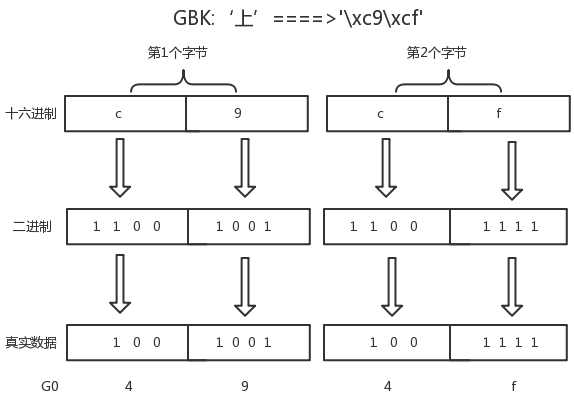
The process mainly consists of four stages:
- First, the character “上” is converted to hexadecimal: “c”, “9”, “c”, “f”
- “c”, “9”, “c”, “f” are each converted to the corresponding binary 01010-style digits
- The first binary bit of each byte is taken out
- The remaining binary digits for each hexadecimal digit are converted back into hexadecimal
So the reason the result you see doesn’t match the unicode character encoding table is the computer’s storage and retrieval principle.
6. Character Encoding Summary
Finally, back to the problem from subsection 2 where printing x directly produced garbled text. Guido’s conversion uses the character encoding GBK that you used when storing in memory, but Pycharm prints to the screen in UTF-8 by default (this can be changed, but I don’t recommend changing it). So if you print x directly in Pycharm, you’ll see garbled text. If you’re a Windows user, you can run the code with Python2 in the Windows terminal and there will be no garbled text, because the Windows platform prints to the terminal in GBK by default. If you’re a MacOS user, running the code with Python2 in the terminal will still produce garbled text, because MacOS prints to the terminal in UTF-8 by default, the same as Pycharm.
That’s why many people writing Python2 programs put a “u” in front of str (perhaps they don’t even know why themselves): they want all strings to be stored in unicode, so they can be converted to and from any encoding. Some people may wonder why Python has two string types — doesn’t this just add hassle for users?
Whatever you can think of, Guido naturally thought of too. There’s a question of chronology here.
The Python language was written in 1989, and Python2 was officially born in 1991. Development of unicode began in 1990, and it was only truly born in 1994. UTF-8 came even later. So the very first Python interpreter must have used ASCII; unicode didn’t exist yet at that time.
We’ve spent a lot of space explaining character encoding. There’s a certain amount of theory in it, but the conclusions you need to remember are very few, and nobody will ask you about the other in-depth material (few people know it in detail anyway). In Python3, all strings are stored in unicode (no need to add “u” in front), and there’s only one string data type, str. As long as they’re stored in unicode, strings will never be garbled under any circumstances. A code example in Python3 is as follows:
# coding:gbk

# The interpreter has been switched to Python3

x = "上"
print(x)
# unicode===>encode===>gbk
code_gbk = x.encode('gbk')
code_utf8 = x.encode('utf-8')

print(code_gbk)
print(code_utf8)
print(type(code_gbk))
print(type(code_utf8))

print(code_gbk.decode('gbk'))
print(code_utf8.decode('utf-8'))

"""
输出:
上
b'\xc9\xcf'
b'\xe4\xb8\x8a'
<class 'bytes'>
<class 'bytes'>
上
上
"""
From the result of printing x.encode(‘gbk’) in Python3, you can see: ‘\xc9\xcf’, which is exactly the value of the str type in Python2. In Python3 it’s the bytes type, while in Python2 it’s the str type. Although their data types differ, the stored results are the same, so there must be a connection between them: Python2’s str type is Python3’s bytes type. We can look at the source code of Python2’s str type; part of the code is shown below:
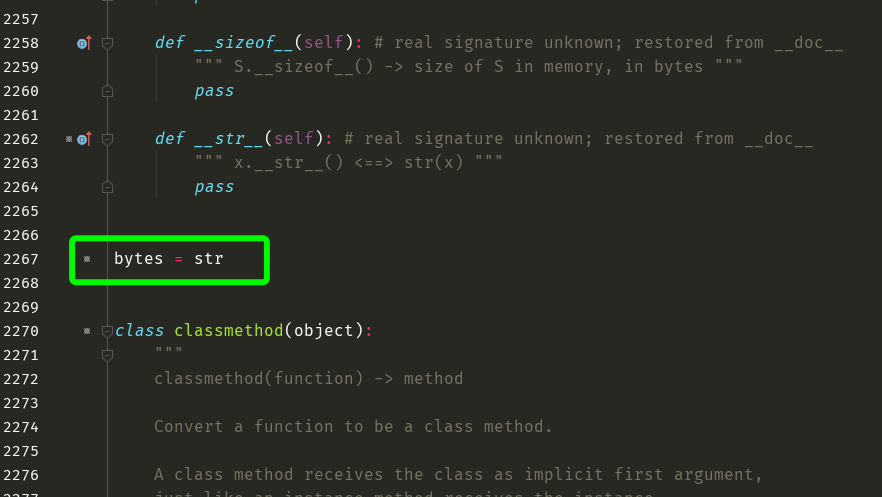
The data type of the encoded result is bytes. It looks like bytes but is actually hexadecimal; the computer automatically converts hexadecimal to binary, so you can treat the bytes type as equivalent to binary. Network transmission is also based on binary. When you’re browsing and the network is very slow, you might see 1b/s, which means one byte transmitted per second.