Chapter 5: File Handling
This article is part of the General Python Programming tutorial series, which is now fully complete. Its goal is to take you from zero to mastery of the Python programming language. This tutorial does not skim over Python in generalities; instead it explains things in a refined, in-depth way, across 5 stages and 25 chapters. So you need to study patiently to truly gain something. Although it doesn’t involve using any frameworks, it gives a holistic explanation of operating systems and network communication, and even rewrites some open-source modules and servers. When you finish, you won’t just have mastered the Python programming language; you’ll also have the ability to learn other programming languages quickly, read any Python source code without difficulty, and have a comprehensive understanding of computers and networks. For complete beginners, it is an excellent textbook for getting into the field of computing and mastering a programming language. For those who already have some Python foundation, I believe this tutorial will take your skills to the next level.
1 Basic File Read and Write Operations
1. The Workflow of File Operations
Files are everywhere on our computers. Whenever we need to save data permanently we use files. Files are provided by the computer’s operating system, so naturally they are controlled by the operating system. As shown in the figure below, a complete computer system mainly consists of three parts:
- Applications
- The operating system
- The underlying computer hardware
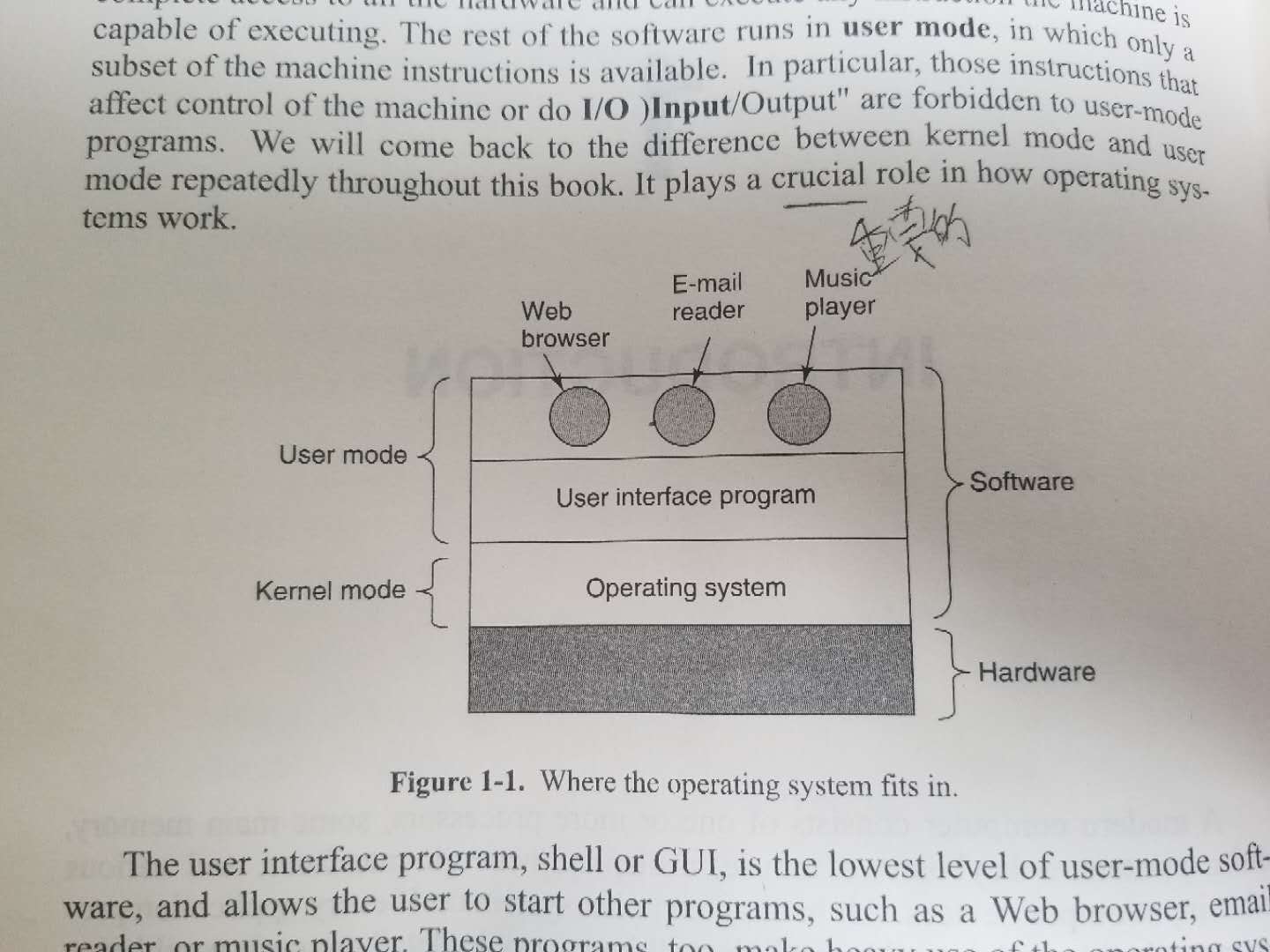
If an application needs to operate the hardware, it must first send instructions to the operating system, which then carries out the hardware operation on the application’s behalf. If an application needs to save the data it produces permanently (data produced by an application originally lives in memory), it writes it to the hard disk, and in doing so the application controls the hardware through the interfaces provided by the operating system. If an application needs to read the contents of a file, it likewise sends a request to the operating system, and the operating system finally returns the file contents. The process is shown in the figure below:
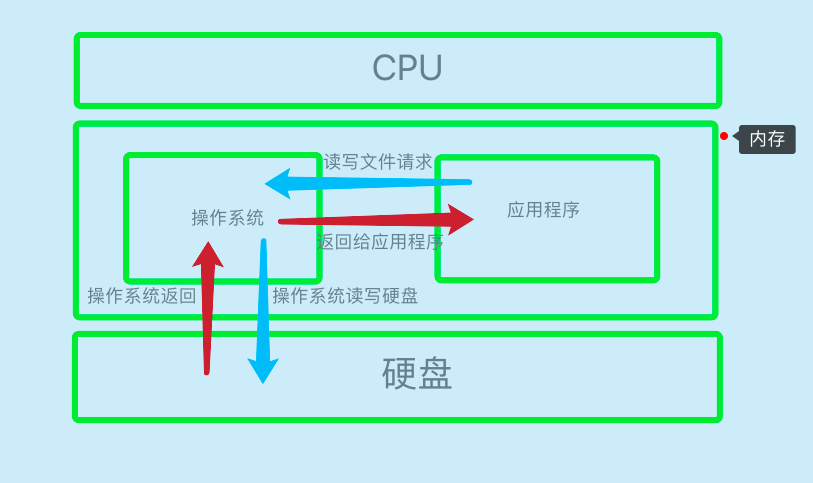
What we’ll explain next is how an application calls the interfaces provided by the operating system to read and write files.
2. The Basic Form of File Operations
We prepare a file a.txt in the current path in advance, as shown below:
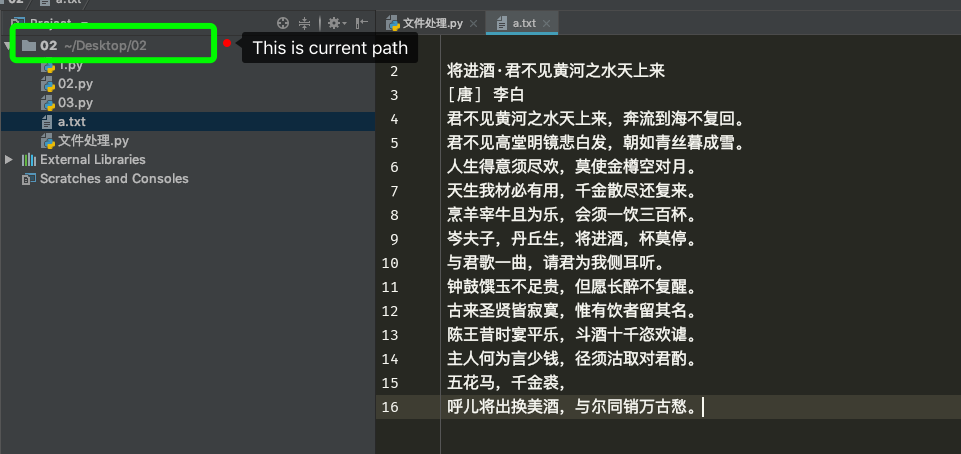
Next, in the file “文件处理.py” we start opening and reading the file. Python is bound to have a function or interface for opening files, and that interface is open. Its parameters are shown in the figure below:
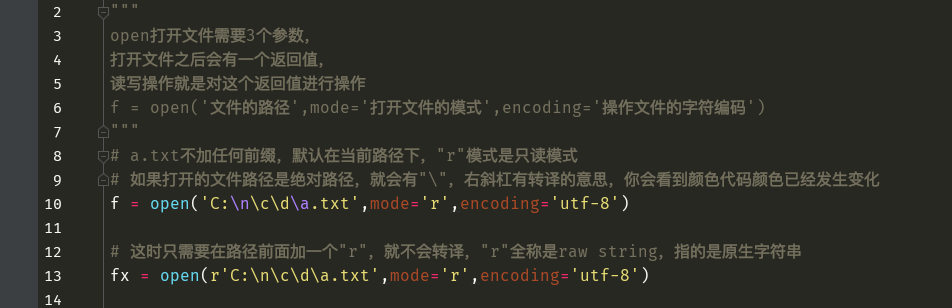
A code example of reading a file is as follows:
"""
open打开文件需要3个参数,
打开文件之后会有一个返回值,
读写操作就是对这个返回值进行操作
f = open('文件的路径',mode='打开文件的模式',encoding='操作文件的字符编码')
"""

"""
open是向操作系统发请求,会占用操作系统资源,这个资源不会自动回收
返回值就是应用程序拿到的变量,应用程序的变量Python解释器会自动帮你回收
"""
# 1 Open the file
f = open(r'a.txt',mode='r',encoding='utf-8')# For the mode parameter of open(), see section 2.2
"""
对于应用程序来说上面这行代码与我写一个"f = 1"没有本质区别,
你不需要再执行"del f",因为解释器会自动帮你清理这个应用程序资源,
但是,打开的文件占用了操作系统的资源,这不会自动回收,所以必须人为形式地进行回收,
f.close()即可,注意其中del f一定要发生在f.close()之后,否则就会导致操作系统打开的文件还没有关闭,
白白占用资源
"""

# 2 Read the file
data = f.read()
print(data)

# 3 Close the file, cleaning up the OS resources for the open file
f.close()
print(f)  # The application's resource is still there
# f.read()  # Once the file is closed it can no longer be read
Opening a file actually occupies two kinds of resources: operating system resources and application resources. Application resources are reclaimed automatically by the Python interpreter, but the operating system’s resources for the open file are not reclaimed immediately. Every time the operating system opens a file it assigns a number, and each number corresponds one-to-one with the number of the application’s file operation request to the operating system. This number is called a file descriptor. The operating system’s file descriptor numbers are limited, so when a server is under high concurrency and a huge number of files are open without having been closed yet, the server gets stuck, and what the user experiences is their client freezing.
Sometimes we always forget to close the file. There is a way to work with files using “with”. It is a context operation that closes the file for you automatically. A code example is as follows:
# as means assignment
with open('a.txt', 'r', encoding='utf-8') as f:
    data = f.read()
    print(data)
In addition, “with” can open several files in a row. A code example is as follows:
with open('a1.txt', 'r', encoding='utf-8') as f1, \
        open('a2.txt', 'r', encoding='utf-8') as f2:
    data1 = f1.read()
    data2 = f2.read()
2 Explanation of the Default Parameters for Opening Files
1. The Character Encoding for Opening Files
If no character encoding is specified, the default encoding used to open a file matches the operating system:
- Windows (users in mainland China): gbk
- Linux: utf-8
- MacOS: utf-8
Example code on MacOS without specifying a character encoding:
# The file is saved in utf-8, which matches this machine's default encoding
with open('a.txt', 'r', ) as f:
    data = f.read()
    print(data)
2. File Open Modes
The default open mode for files is “t” mode, which means text mode. This means images, videos, audio and similar files cannot be opened in this mode, because they are stored in binary format, whereas text mode stores data as characters.
There are three modes for operating on files: “r”, “w” and “a”. “r” is read-only, “w” is write-only, and “a” means append. The default mode for operating on files is “r”, so the default open mode is “rt”. For operating on text files, “t” mode must be combined with one of the three operation modes. Very often you’ll see that this “t” is omitted, which is fine.
3 Operations When Opening Files in Text Mode
In file handling we need to open a file, and there are several ways to open one. Sometimes we only want to read a file’s contents without modifying it, so to prevent accidental modification we can open the file in ‘r’ mode, and then you can’t make any changes to it. Every mode has its reason to exist; you’ll understand once you’ve used them more.
1. Operating on Files in “r” Mode
To read everything, use read. A code example is as follows:
f = open('a.txt', mode='r', encoding='utf-8')  # In "r" mode, an error is raised if the file doesn't exist
# f.write('哈哈') #Raises an exception; writing is not allowed
print(f.readable())  # Check whether it is readable
print('=============>1')
print(f.read())  # Read everything
print('=============>2')
# Reading a file moves a cursor; after the first full read the cursor is at the end, so the second read gets nothing
print(f.read())
f.close()
To read the file contents line by line, use readline. A code example is as follows:
f = open('a.txt', mode='r', encoding='utf-8')
# readline reads the file one line at a time
print(f.readline(), end='')  # The file has newlines and print also adds one, so specify the end parameter to remove the default newline
print(f.readline(), end='')
print(f.readline(), end='')
f.close()
To read all of the file contents into a list, with each line as one element of the list, use readlines. A code example is as follows:
f = open('a.txt', mode='r', encoding='utf-8')

print(f.readlines())
f.close()
readlines can take a number as an argument, but it doesn’t mean the number of lines; it means the number of bytes, so we generally don’t use it. To print a file’s contents line by line, readlines is commonly combined with a for loop. A code example is as follows:
# When the file content is small, either of the following two approaches works

with open('a.txt') as f:
    # When the file is large, f.readlines() produces a huge list in memory and the machine freezes
    for line in f.readlines():
        print(line, end='')

# This approach is recommended
with open('a.txt') as f:  # f is an iterable, just like a hen that lays eggs
    for line in f:
      	# When the file is large, this way only one line is in memory at a time
        print(line, end='')
2. Operating on Files in “w” Mode
Note: in “w” write-only mode, if the file exists it will be emptied. A code example is as follows:
f = open(r'a.txt', mode='w', encoding='utf-8')  # The default is wt
f.write('第一行\n')  # You need to add "\n" yourself for a newline
f.write('第二行\n')
f.close()
If the file doesn’t exist, an empty document is created. A code example is as follows:
f = open(r'a1.txt', mode='w', encoding='utf-8')  # The default is wt
f.write('第一行\n')
f.write('第二行\n')
f.close()
Commonly used methods in write-only mode:
f = open(r'a1.txt', mode='w', encoding='utf-8')  # The default is wt

f.writable()
# writelines accepts a list or tuple, which can contain multiple lines; you need to add newline characters yourself
f.writelines(['111111\n', '222222\n', '333333\n'])
# The code below produces the same result as the code above
# f.write('aaaaaa\nbbbbbbb\ncccccc\n')
f.close()
3. Operating on Files in “a” Mode
“a” mode means append-only writing. If the file doesn’t exist, an empty file is created; if the file exists, the cursor moves straight to the end of the file. That’s why we use “a” mode when writing logs. A code example is as follows:
f = open('access.log', mode='a', encoding='utf-8')
print(f.writable())
print(f.readable())
f.write('5555555555555\n')
f.close()
4 Operations When Opening Files in Binary Mode
1. Basic Introduction to “b” Mode
“b” mode means the file is opened in “b” mode. Like “t” mode, it can’t be used alone; it must be used as “rb”, “wb” or “ab”. In “b” mode, reading and writing are both done in units of bytes, so you can think of “b” mode as binary mode. Ordinary text is stored as characters, but images, videos, audio and similar files are stored in binary form, so “t” mode cannot read them. The code and error example are as follows:
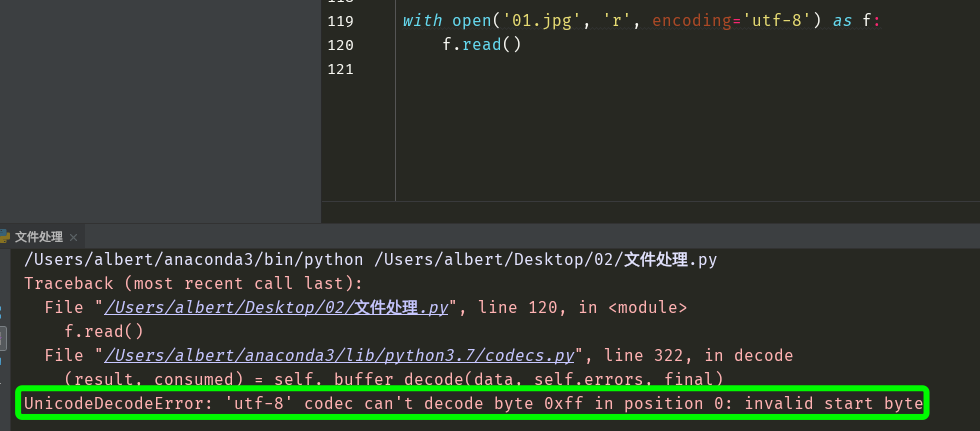
An image file is not saved with a character encoding; it is saved in binary form in the JPG format and has nothing to do with character encodings, so handling the file in text mode doesn’t work. We should open the file in binary mode, and then there’s no need to specify a character encoding. See the code example below for the correct way to open it:
# In b mode you must never specify the encoding parameter
with open('01.jpg', 'rb', ) as f:
    data = f.read()
    print(data)
Key points:
-
Similar to t mode, it can’t be used alone; it must be rb, wb or ab
-
In b mode, reading and writing are both in units of bytes
-
In b mode you must never specify the encoding parameter; without the encoding parameter the default is binary
-
b mode (binary) can read text, images, videos, any file at all (because data of every type must be stored on the hard disk in binary form)
2. Operating on Files in “rb” Mode
One thing to point out is that “b” mode can also read text files. Underneath, characters are all stored in binary form; it’s just that when you read a text file in “t” mode, open converts the binary into readable text for you. That is the convenience of “t” mode, but it has a limitation: it can only operate on text files. “b” mode, on the other hand, is universal: the underlying storage of any file is binary, which means “b” mode can operate on any file. A code example is as follows:
with open('01.jpg', 'rb', ) as f1, open('a.txt', 'rb') as f2:
    img = f1.read()
    text = f2.read()
    print(text.decode('utf-8'))  # Convert bytes to utf-8
3. Operating on Files in “wb” Mode
“wb” mode is also a kind of “w” mode for operating on files. If the file exists it is emptied, and if it doesn’t exist an empty file is created. You’d use it, for example, when you need to rewrite a document. A code example is as follows:
# Write in wb mode
with open('a.txt', 'wb') as f:
    msg = '你好,世界'
    f.write(msg.encode('utf-8'))  # Specify the character encoding for writing to the file

# Read in rb mode
with open('a.txt', 'rb') as f:
    data = f.read()
    print(data)
    print(type(data))
    print(data.decode('utf-8'))  # Specify the character encoding for reading the file
4. Operating on Files in “ab” Mode
“ab” mode means appending in binary form, on the same principle as the “a” mode for operating on files. A code example is as follows:
with open('a.txt', 'ab') as f:
    msg = '\n世界:你也好,小鬼'
    f.write(msg.encode('utf-8'))  # Specify the character encoding for writing to the file
Supplement:
Here I’ll cover part of the usage of a small module, the sys module. See the code example and screenshot below for how to use it:
import sys  # First import this module

list_test = sys.argv  # Its return value is a list
print(list_test)
Note: small modules are wheels that Python experts have already built. They may contain functional helpers you need in a particular scenario, so you don’t have to write the functions yourself — just import its library and call its function, and you’re done~
Next, we run the following command in a terminal (note the spaces before and after argument 1):
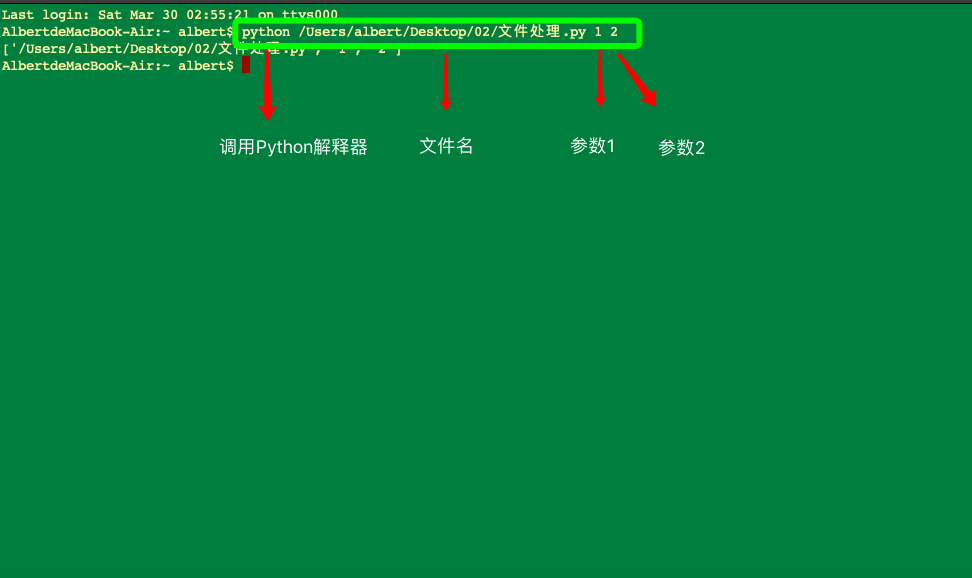
You can see that the result printed in the terminal is a list: the first value is the file path, and the second and third values are the two arguments.
5. Other Modes for Operating on Files (For Reference)
Generally speaking, the file modes you’ll encounter are read-only or write-only, but there are also read-write modes. You only need to be aware of these modes. The explanation and code examples are as follows:
# "r+t" mode, which can also be written as "r+" mode, means readable and writable
with open('a.txt', 'r+t', encoding='utf-8') as f:
    print(f.readable())
    print(f.writable())

# "w+r" or "w+" mode: readable and writable
with open('a.txt', 'w+t', encoding='utf-8') as f:
    print(f.readable())
    print(f.writable())

# "a+t" or "a+": readable and appendable
with open('a.txt', 'a+t', encoding='utf-8') as f:
    print(f.readable())
    print(f.writable())

# "U" mode, universal newlines, deprecated; no need to learn it
# with open('a.txt', 'U', encoding='utf-8') as f:
#     print(f.readable())
#     print(f.writable())
The “r+”, “w+” and “a+” modes are all readable and writable. The difference is that each keeps the behavior of its original mode: in “r+” mode an error is raised if the file doesn’t exist, while in “w+” or “a+” mode a new file is created if it doesn’t exist; when the file exists, w+ empties it and a+ appends content when writing.
5 Moving the Cursor Within a File
When a file is opened there is a cursor that moves. Using the seek method, we can move the cursor. A code example is as follows:
with open('a.txt', 'r') as f:
    f.seek(9)  # This argument is the offset, in bytes
    data = f.read()
    print(data)
Note: the cursor can only move from left to right. seek can take two arguments. The first argument is the one in the code above; if you pass only one argument, that’s the one it refers to. The second argument defaults to 0, which means the cursor moves starting from the beginning of the file. Besides 0, it can only accept 1 or 2: 1 means moving from the current position, and 2 means moving from the end of the file. 1 and 2 must be used in “b” mode, while 0 works in either “t” or “b” mode. But whichever mode it is, movement is always in units of bytes. A code example is as follows:
with open('a.txt', 'rb') as f:
    f.seek(3, 0)  # Move three bytes, i.e. one Chinese character in utf-8 encoding
    print(f.tell())  # Current cursor position, in bytes
    f.seek(3, 1)  # Offset 3 bytes to the right from the current position, then read the file contents
    # f.seek(3, 2)  # Can only read newly added dynamic data
    data = f.read()
    print(data.decode('utf-8'))

with open('a.txt', 'r') as f:
    f.seek(3, 0)
    print(f.read())
Supplement:
Here is the usage of another small module, the os module. See the code example below for how to use it:
import os  # First import this module

os.rename('a.txt', 'b.txt')  # Rename a file; the two arguments are the source file name and the target file name
os.remove('a1.txt')  # Delete the a1.txt file; this argument is the file path